A family photo can disappear in a moment: a flooded garage, a misplaced phone, a computer that will not turn on, or a box of prints that quietly fades in the attic. Learning how to back up photographs is not only a technical task. It is a way to protect the faces, places, and everyday moments your family may never be able to recreate.
The best plan is one you can maintain. It should protect both the original prints and the digital copies, give you more than one place to retrieve your images, and make it easy for family members to find what matters later.
Start by deciding what needs protection first
You do not need to scan every photograph in one weekend. Begin with the images that would hurt most to lose: older family prints, one-of-a-kind albums, photographs of relatives who have passed away, childhood photos, wedding pictures, and images already showing signs of fading or damage.
Set aside photographs with curled edges, tears, stains, or loose surfaces. These need gentle handling. Avoid using tape, glue, household cleaners, or rubber bands to organize them. A damaged print can sometimes be restored after it is digitized, but rough handling can create additional loss that no scan can fully correct.
For digital photos, start with the devices and accounts you use most. Your phone may hold years of family life, while an older laptop or external drive may contain folders you have not opened in a decade. Make a simple inventory of where photos currently live before moving files around. Knowing what you have prevents the common problem of backing up the same folder repeatedly while missing an entire collection elsewhere.
How to back up photographs using the 3-2-1 approach
A practical rule for family photo preservation is the 3-2-1 approach: keep three copies of your photographs, on two different types of storage, with one copy kept somewhere else. This may sound like more than most households need, but it accounts for the fact that a single accident can affect everything stored in one place.
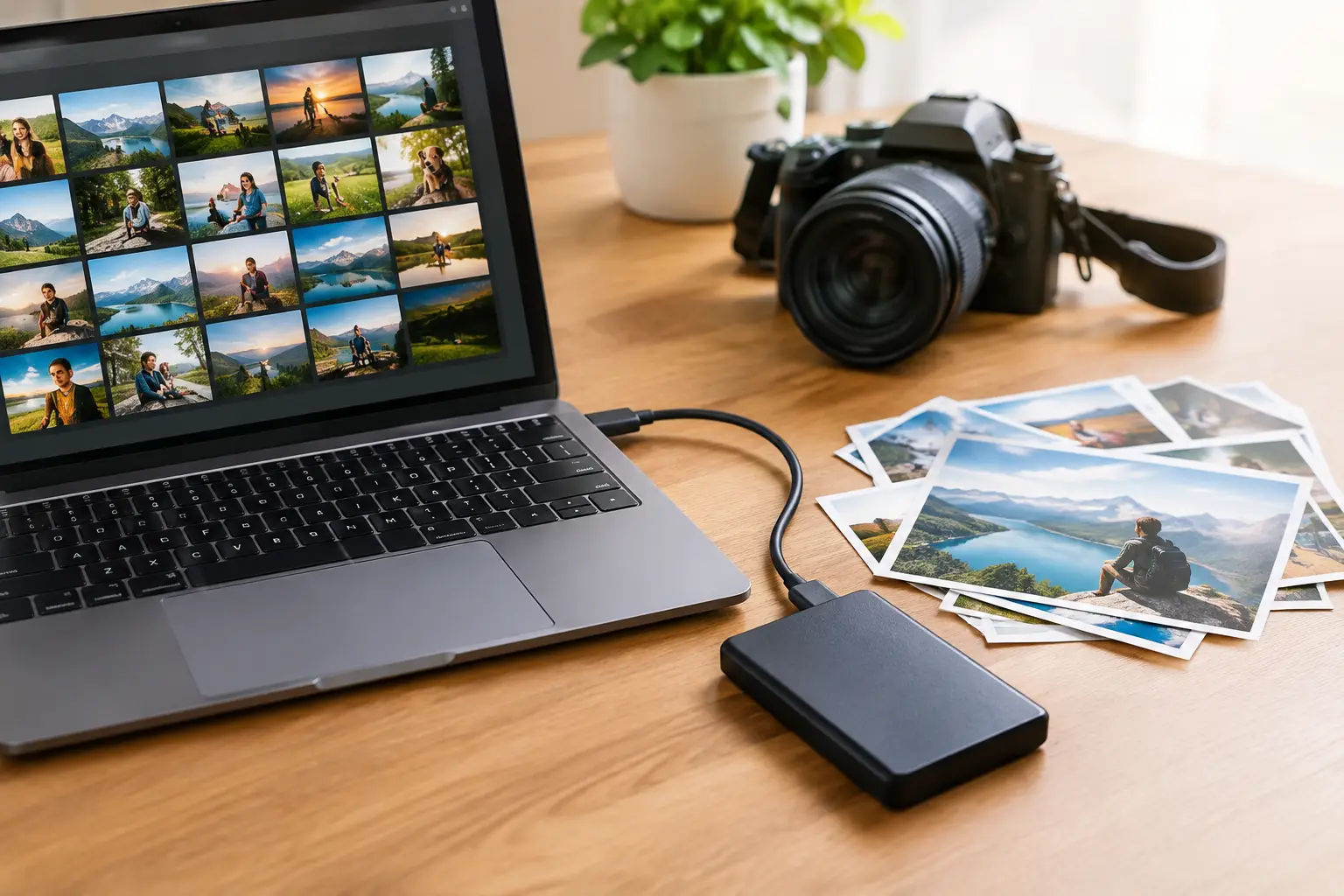
Your first copy is the working collection - the photos on your phone, computer, or organized home drive. Your second copy can be an external hard drive stored in your home. The third should be off-site, such as a reputable cloud photo service or a drive kept safely at another trusted location.
The goal is not to choose between an external drive and cloud storage. Each solves a different problem. An external drive gives you direct access, does not require an internet connection, and can hold a large collection at a reasonable cost. Cloud storage protects against a fire, theft, or local equipment failure, but it depends on your account access, internet connection, and the service continuing to meet your needs.
If your photographs are especially meaningful, use both. Keep the external drive disconnected when it is not actively backing up files. This offers some protection from accidental deletion, hardware problems, and malicious software that can spread through connected devices.
Digitize prints before their condition changes
Physical photographs are originals, but they are not permanent. Color prints can fade, paper can become brittle, and albums can trap images against adhesive pages. Digitizing gives you a usable copy that can be backed up, shared, and restored without repeatedly handling the original.
A home scanner can work well for clean, flat prints when you have a manageable number of images and the time to scan carefully. Scan photographs at a resolution high enough to preserve detail. For most standard family prints, 600 dpi is a useful target, particularly if you may want enlargements or restoration later. Save an original scan as a high-quality file rather than relying only on compressed copies sent by text or email.
Phone scanning apps are convenient for quick reference copies, but they may introduce glare, uneven lighting, distortion, or automatic color changes. They are helpful for getting an album documented quickly, yet they are not always the right choice for fragile, faded, torn, or historically important photographs.
For large collections or damaged prints, professional digitization and restoration can save time and reduce handling risks. Photo Renew Labs works with families who want to preserve physical collections while improving images affected by fading, tears, stains, and age. The point is not to make every photo look artificially new. It is to create a clear, stable digital version while respecting the character of the original memory.
Organize files so backups stay useful
A backup is only helpful if you can locate the image you need. Before copying a large collection, create a simple folder structure that will still make sense years from now. Many families find that folders arranged by year, event, or family branch are easier to use than one giant folder labeled “Photos.”
For example, a folder might be named “1998_Grandma_80th_Birthday” or “2012_Smith_Family_Vacation.” If you do not know an exact date, use an estimated decade or a descriptive name such as “1950s_Johnson_Family_Home.” Consistency matters more than perfection.
Use meaningful file names for important scans, especially older photographs that have no digital date information. A name such as “Unknown_Grandfather_Portrait_1940s” is far more useful than “IMG_0047.” If identities are uncertain, record what you know without guessing. You can add a note in the file metadata, a separate text document, or a printed inventory kept with the physical collection.
Do not delete original camera files or original scans after editing them. Keep the unedited version in a clearly labeled Originals folder, then save restored or adjusted versions separately. Future tools may produce better results, and another family member may want to see the photograph as it was found.
Choose storage with recovery in mind
When comparing backup options, think about how you would recover your photographs after a problem. A cloud service is convenient only if you can sign in, remember the account details, and have enough storage for full-resolution files. An external drive is useful only if it is labeled, stored safely, and checked occasionally.
Keep a short record of where your photo backups are located and how to access them. This does not need to be complicated. A written note stored securely with estate documents can identify the drives, account names, and the person who should be able to access the collection if needed. Avoid placing passwords in an unprotected note, but make sure your family has a realistic plan for retrieving the archive.
For very large collections, consider maintaining a dedicated photo archive drive rather than mixing irreplaceable images with general computer files. Label it with the date of the most recent backup. Store it in a cool, dry location, away from direct sunlight, moisture, and extreme temperature changes.
Check your backup instead of assuming it worked
Copying files is not the same as confirming they are safe. At least a few times each year, open your backup drive and inspect a sample of older and newer folders. Make sure the images open, the files are not unexpectedly tiny, and recent photographs are included.
Cloud backups also need review. Confirm that your phone is actually uploading new images, especially after changing devices, passwords, settings, or storage plans. It is easy to assume photos are protected because an app is installed, only to discover that uploads paused months earlier when the account ran out of space.
As technology changes, move your archive forward. Hard drives wear out, USB connections evolve, and old software can become difficult to use. Replacing an aging drive every few years and copying the collection to the new one is far easier than trying to recover files from a failed device.
Keep the originals safe, too
Digital copies protect access, but they do not replace the value of original prints, handwritten notes, album pages, and photographic history. Store physical photographs in acid-free boxes or sleeves when possible. Keep them out of basements, garages, attics, and other areas prone to heat, humidity, pests, or water damage.
If you are dismantling an old album, photograph or scan the pages before removing anything. The arrangement, captions, and handwritten notes may be as meaningful as the pictures themselves. For albums with brittle pages or photos attached with old adhesive, it may be better to digitize the album as it is rather than force the images apart.
A photo archive does not have to be perfectly organized before it is protected. Choose one box, one album, or one folder that matters to your family, create its first backup, and give those memories a safer future.